Printer Details
Open the Printers tab to view detailed information for a specific printer.
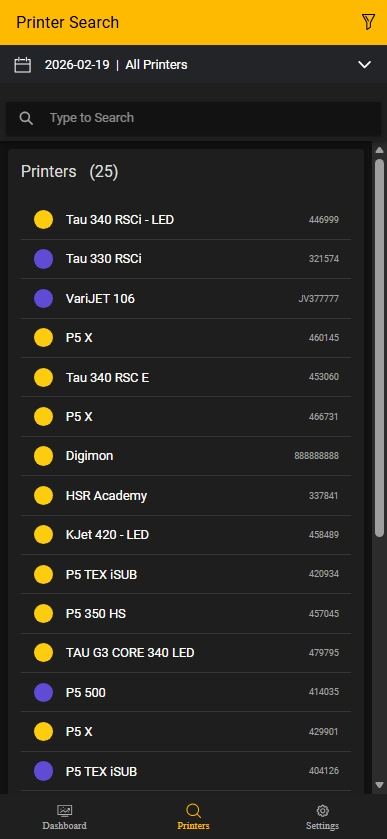
Printer search
If no printer is selected, the application opens the printer search view.
Use the search bar or scroll through the list to locate the required printer.
The colored indicator in front of each printer reflects its current status:
- Green: Printing
- Red: Breakdown
- Yellow: Idle
- Purple: Setup
Main section
After selecting a printer, the header card displays key machine identifiers and the current status.
If supported by the printer model, the following additional states are shown:
- Initialization state (ON/OFF)
- Service mode status
Productivity chart
The Productivity chart shows the percentage distribution of machine states for the selected time range.
Workload
This section displays production output values for the selected time range.
Ink levels
This section displays the currently loaded inks and, if supported by the printer, the current ink tank levels.
If a printer doesn't provide ink level data, only the loaded inks are displayed with static level indicators.
A yellow indicator next to a color means the ink is approaching expiration.
A red indicator means the ink has expired.
Using expired ink can reduce print quality, clog filters, damage printheads, and may void the warranty.
Detail sections
Available detail sections:
- Printer Jobs
- Consumption
- Maintenance
Access these sections by scrolling down or by using the overflow menu (...) in the top-right corner.
You can create a service ticket directly from the header section, including photo attachments for faster service processing.